Applies to: Kubuntu 15.10 (Wily Werewolf), VMware Workstation 12
Legacy guide: This article documents the 2015 installation process for Kubuntu 15.10 (Wily Werewolf) in VMware Workstation. Kubuntu 15.10 is based on Ubuntu 15.10, which reached end of life on July 28, 2016 and no longer receives security or package updates.
The original Kubuntu 15.10 download page is no longer a current distribution source. For new deployments, use a currently supported Kubuntu release from Kubuntu Downloads.

This step-by-step tutorial preserves the original Kubuntu 15.10 (Wily Werewolf) installation workflow in VMware Workstation. The screenshots and settings below reflect the VMware Workstation and Kubuntu versions available in 2015.
For information about the VMware generation used in this tutorial, see VMware Workstation 12 Pro New Features.
What is Kubuntu Linux?
Kubuntu is a free, user-friendly Linux distribution. Kubuntu is an official derivative of the Ubuntu operating system which uses KDE Plasma Desktop instead of the Unity graphical environment. It uses the same underlying system with Ubuntu. Every package in Kubuntu shares the same repositories as Ubuntu.
What’s New in Kubuntu 15.10 Wily Werewolf
Kubuntu 15.10 was released on October 22, 2015. It shipped with Linux kernel 4.2, KDE Plasma 5, KDE Applications 15.08 and persistent network interface naming. As part of the Ubuntu 15.10 release family, it had a nine-month support lifecycle and is now end of life.
Kubuntu 15.10 Installation Steps in VMware Workstation
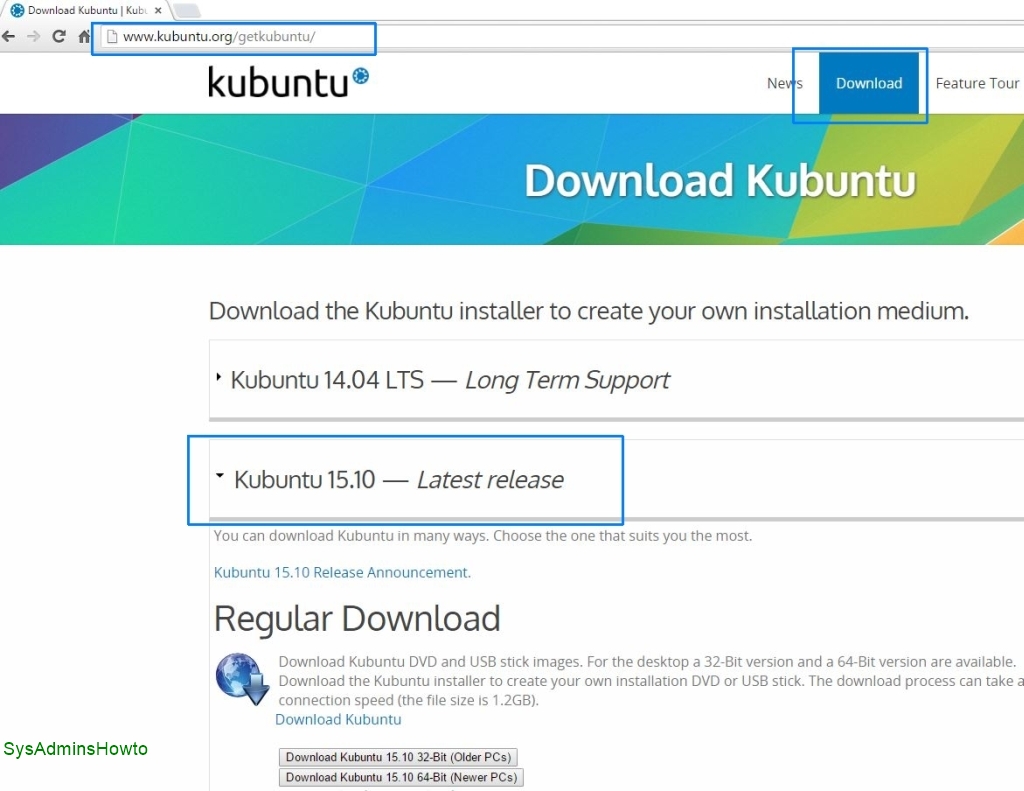
1. This historical guide used the Kubuntu 15.10 32-bit installation ISO. The original 15.10 download page is no longer current, so do not use the present Kubuntu download page expecting it to provide this historical image.
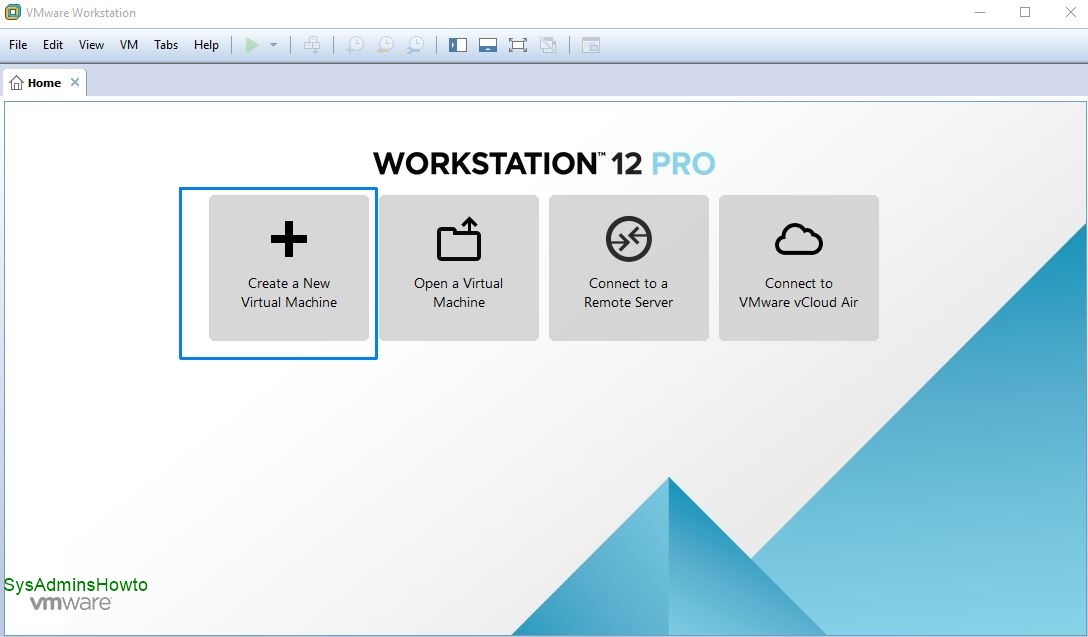
2. Open VMware Workstation and then click Create a New Virtual Machine.
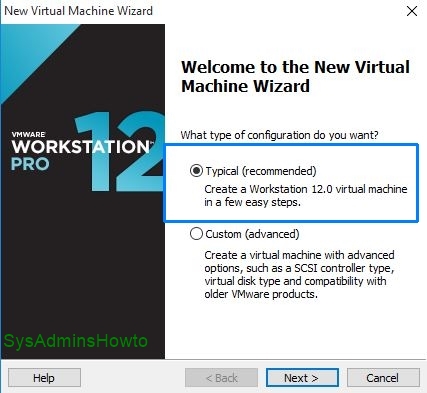
3. You can go with Typical (recommended) at Welcome to the New Virtual Machine Wizard screen.
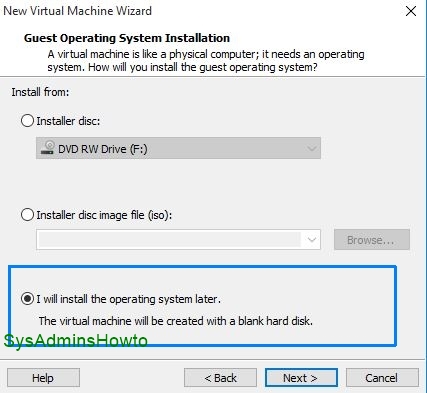
4. Choose I will install the operating system later. Do NOT choose the second option, you mat get an error during the installation. So, be careful at this step.
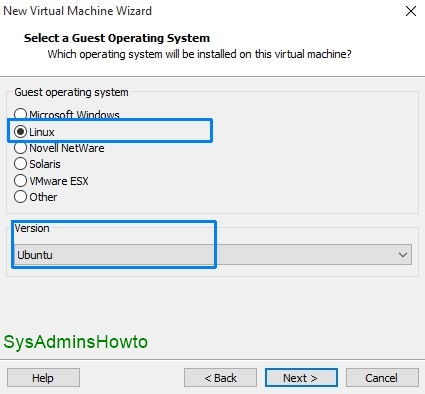
5. Choose Linux as a Guest Operating System and choose Ubuntu version.
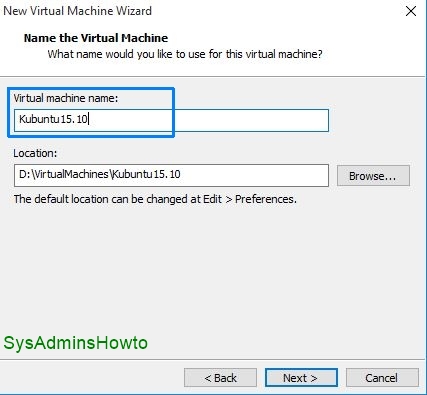
6. Give a name and set location for your Kubuntu 15.10 virtual machine files.
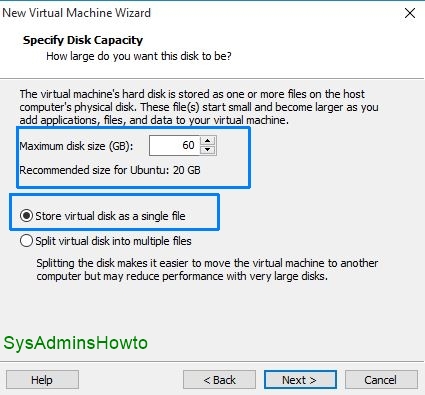
7. Specify how much disk space you want to use for Ubuntu VM. I set it as 60 GB. I also selected the Store virtual disk as a single file option for this example.
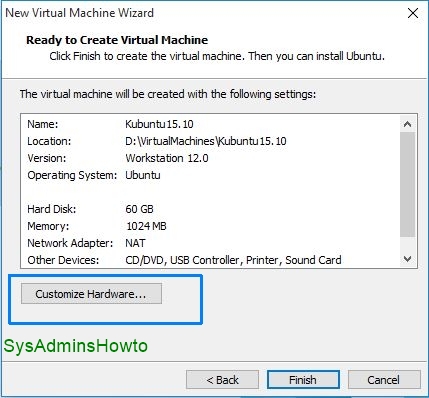
8. Click Customize Hardware.
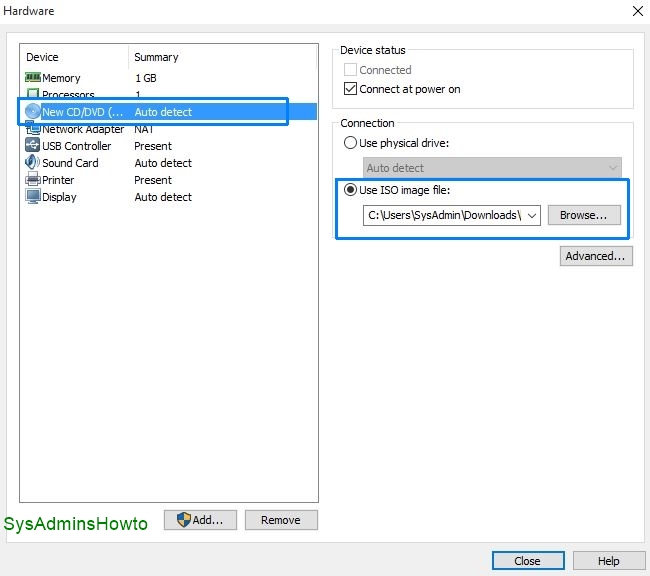
9. Go to New CD/DVD and select Use ISO image file then browse to Kubuntu 15.10 installation ISO media.
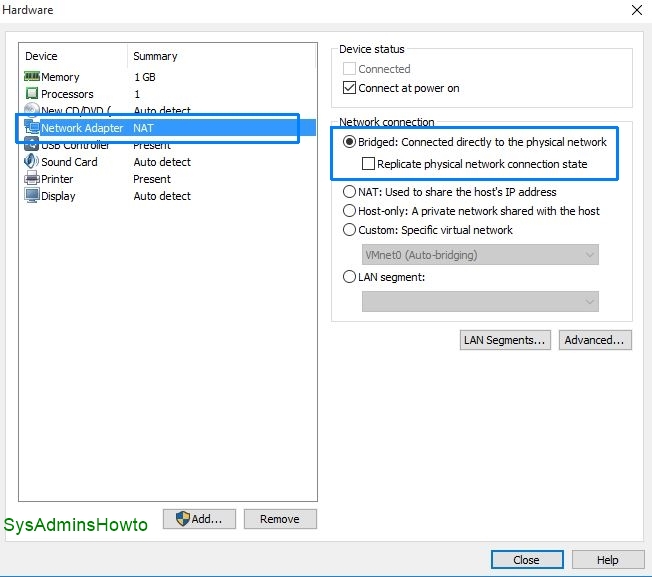
10. Go to Network Adapter and select Bridged: Connected directly to the pysical network option.
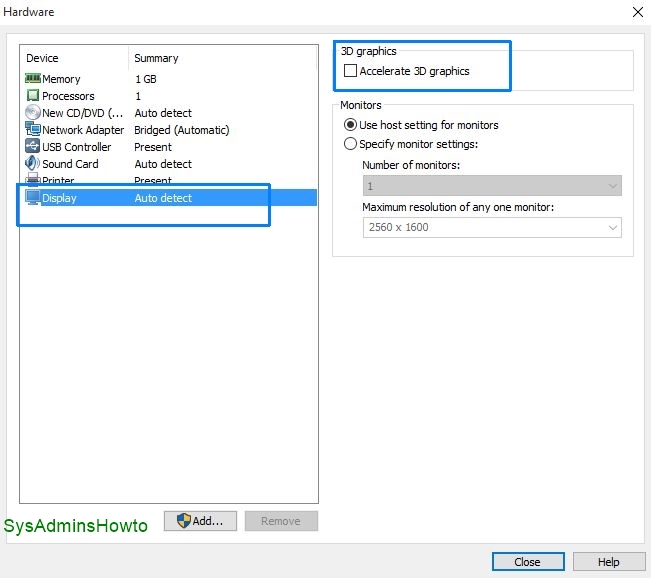
11. In this 2015 test environment, Accelerate 3D graphics was disabled before installation. Treat this as a version-specific workaround from the original environment rather than a general recommendation for current VMware or Kubuntu releases.
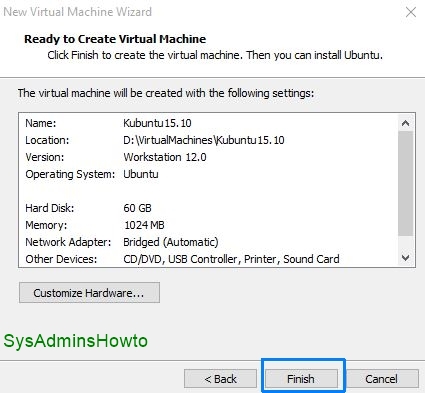
12. Click Finish at Ready to Create Virtual Machine screen.
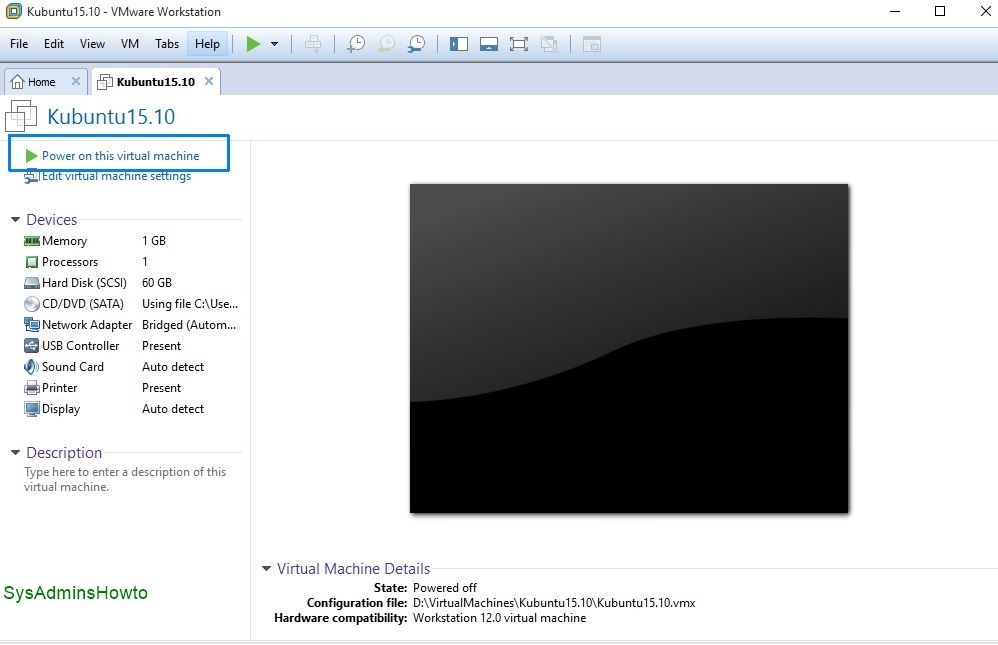
13. Click Power on this virtual machine at VMware Workstation screen.
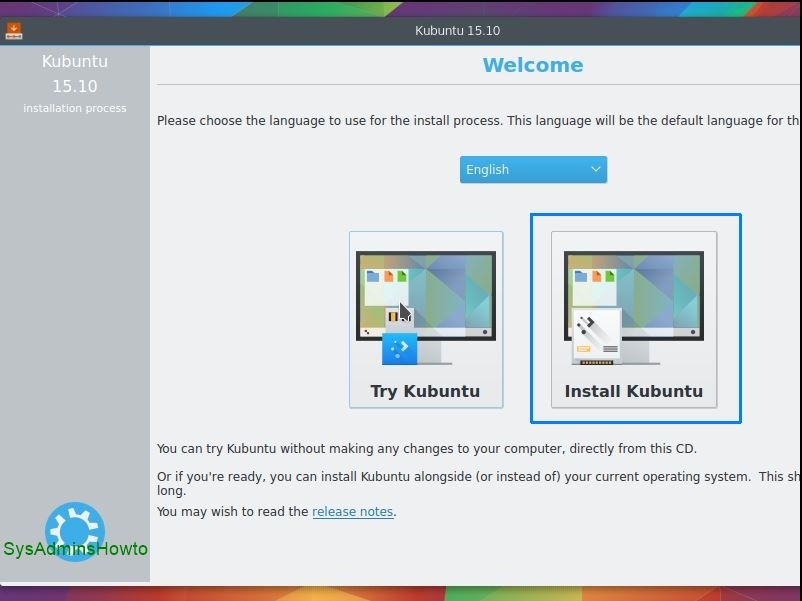
14. Click Install Kubuntu at Kubuntu 15.10 welcome screen.
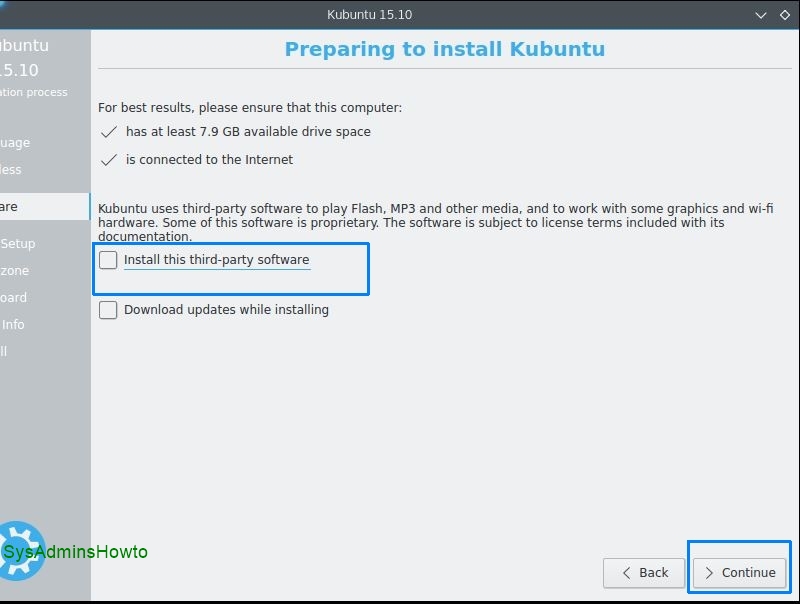
15. Click Continue at Preparing to install Kubuntu.
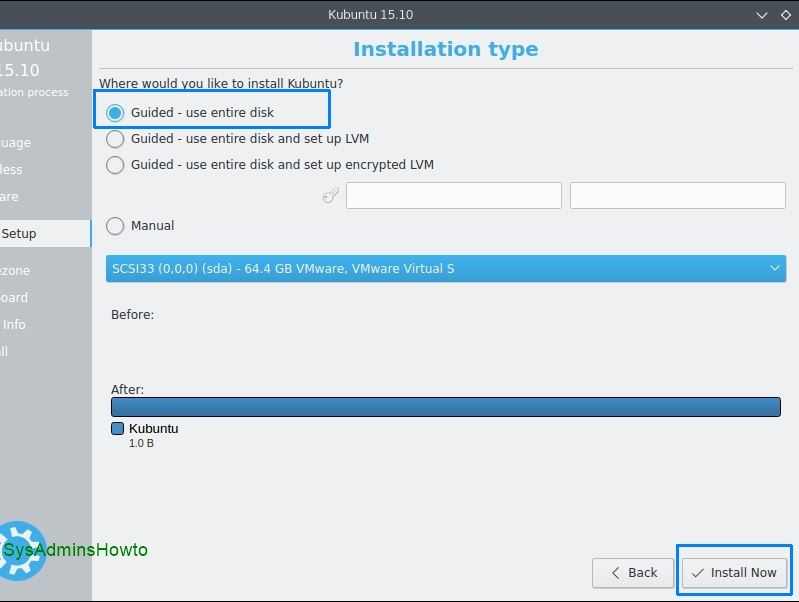
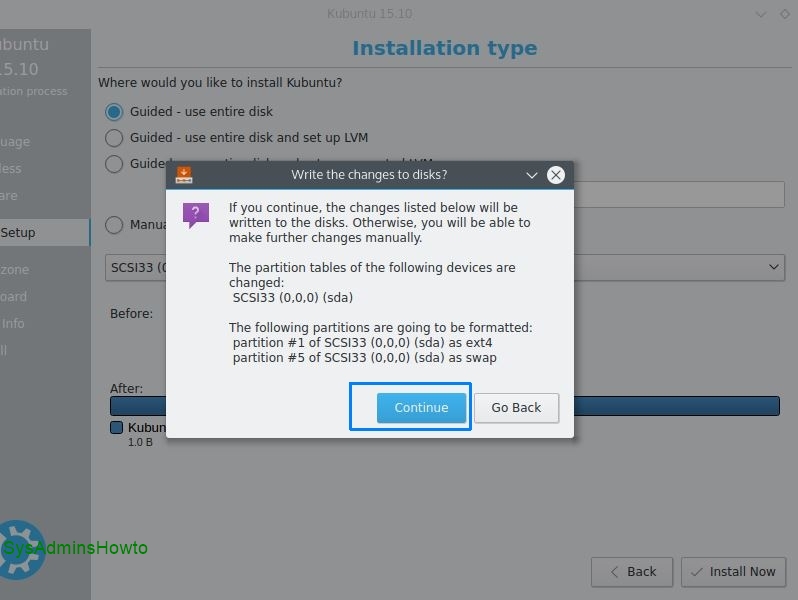
16. Select Guided – use entire disk option at Installation type. This option will use entire virtual disk for installation.
17. Click Continue to write the changes to the disks.
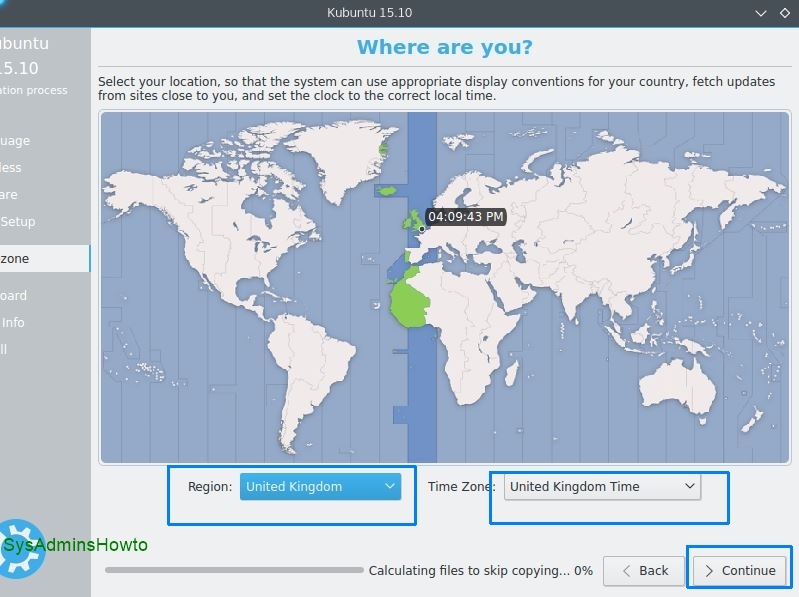
18. Choose your time zone and then click Continue.
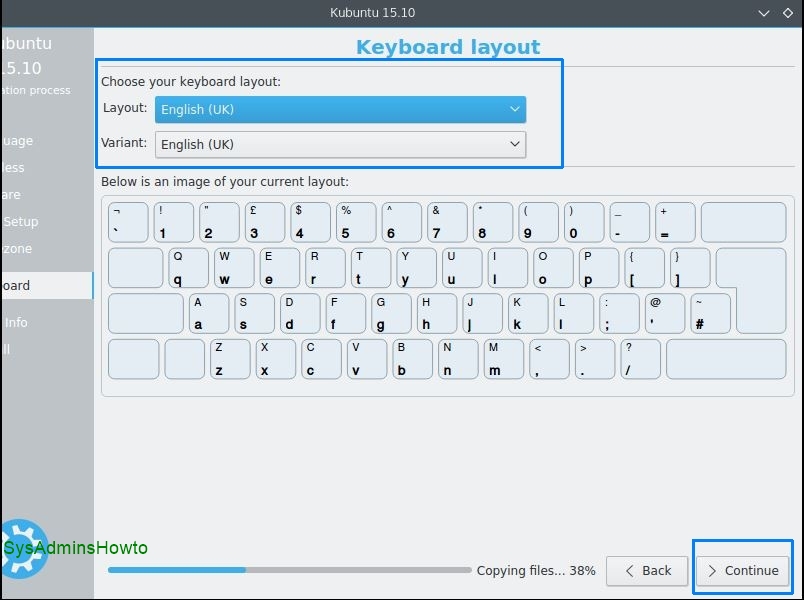
19. Choose your keyboard layout and then click Continue.
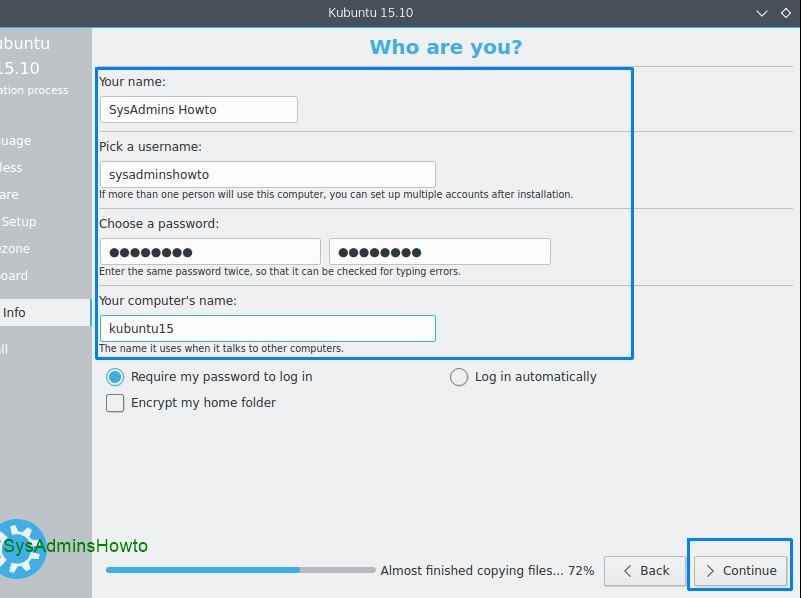
20. Write your full name, pick a username, set your password and set hostname for Kubuntu 15.10 and then click Continue to begin the installation.
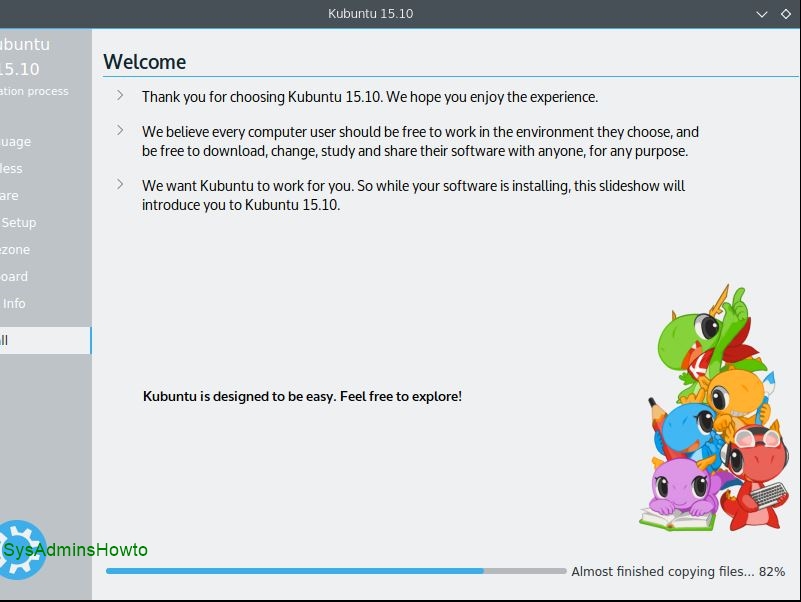
21. Kubuntu 15.10 (Wily Werewolf) installation process takes approximately 5-10 minutes.
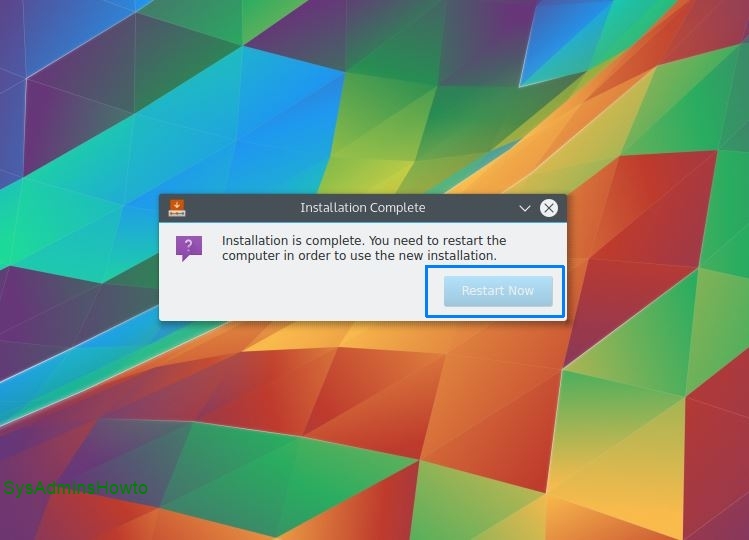
22. After the installation is complete, click Restart Now.
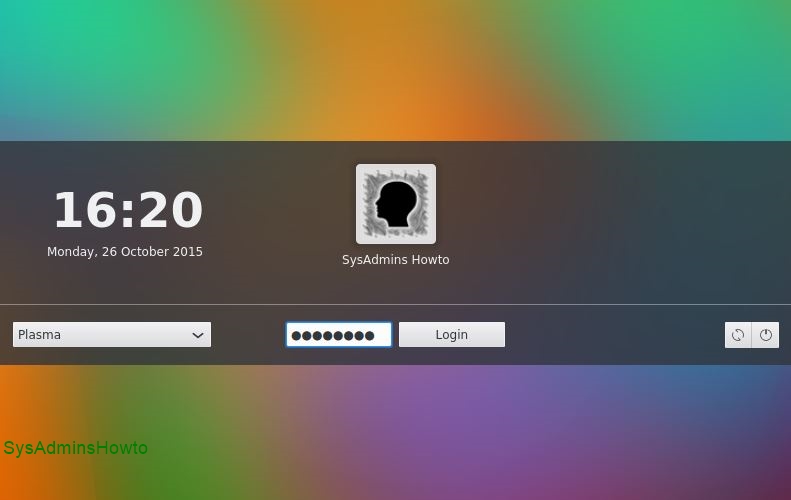
23. At KDE Plasma login screen, type user name and password that you specified in step 20.
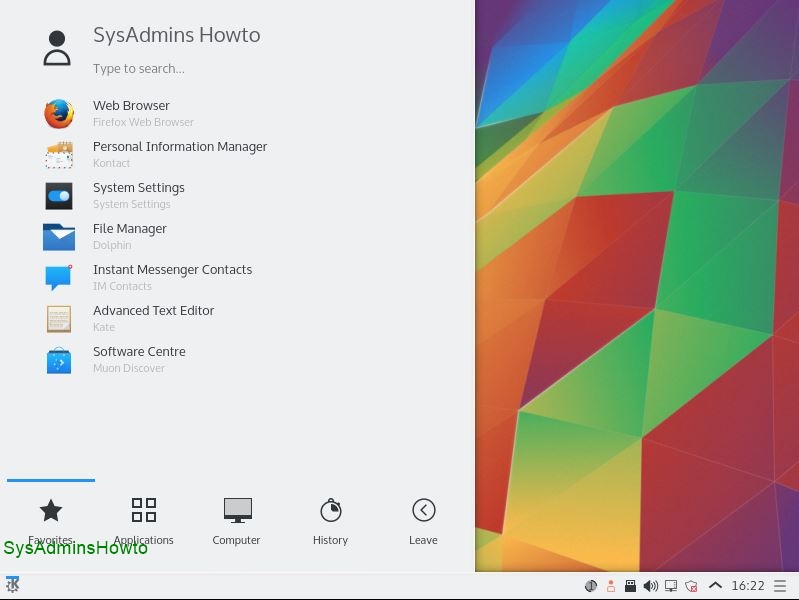
Congratulations, you’ve just successfully installed Kubuntu 15.10 (Wily Werewolf) in VMware Workstation. After the installation, I recommend you to install VMware tools for better performance and usability. You can use drag-drop file and automatic screen resolution adjustment features, if you install open-vm-tools. VMware recommends open-vm-tools whenever possible.
I hope this Kubuntu 15.10 installation tutorial is helpful for you. If you liked it or found useful, feel free to like or share it. Any questions or comments or suggestions are welcomed!

Cloud and infrastructure professional with nearly two decades of experience in enterprise IT environments, spanning public cloud, private cloud, and hybrid architectures.