This step-by-step article shows you how to install Kali Linux 2.0 in VMware Workstation step-by-step but you can also use VMware Player which is free. This tutorial also helps if you install Kali Linux 2.0 on physical hardware. In fact, Kali Linux 2.0 installation is not very hard. First of all, why Kali as a virtual machine? Because, if you are new on Kali, it is very safe to use it as virtual machine. You can easily explore Kali Linux 2.0 new features without damaging any live data on your computer.
VMware workstation and VMware Player are virtualization software at the desktop level. They allow to run multiple virtual machines on a physical machine. You can visit VMware product page for more information about the latest release for VMware Workstation and VMware Player.
Update: You can also watch Install Kali Linux 2 in VMware Workstation 12 Step-by-Step in 10 Minutes Video below or keep continue reading the article.
https://youtu.be/BeZNpHVdHwE
Kali Linux 2.0 Installation Steps in VMware Workstation
1. Download Kali Linux 2 Sana ISO 64 bit and save it on your computer.

2. Open VMware Workstation and click Create a New Virtual Machine.

3. I will go with the Custom installation in this tutorial, because it gives more options.
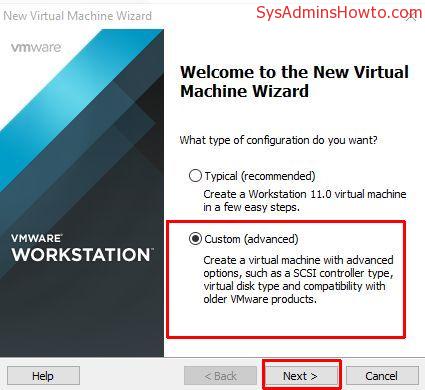
4. Click Next at Virtual Machine Hardware Compatibility.

5. Browse your Kali Linux 2 Sana ISO file.
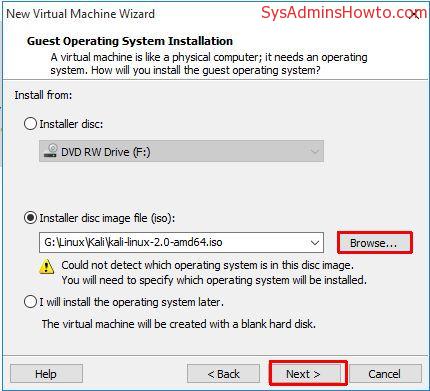
6. Choose Linux as a Guest Operating System and choose Debian 7.x 64-bit version. (If you downloaded Kali Linux 32 bit edition, you should choose Debian 7.x

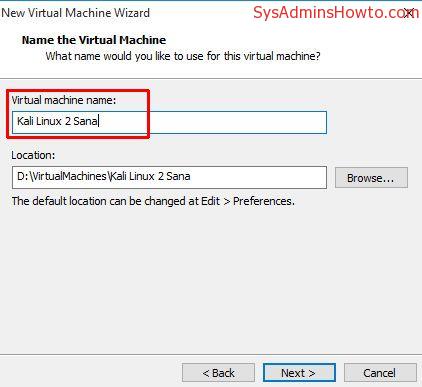
7. Write the name of your virtual machine.
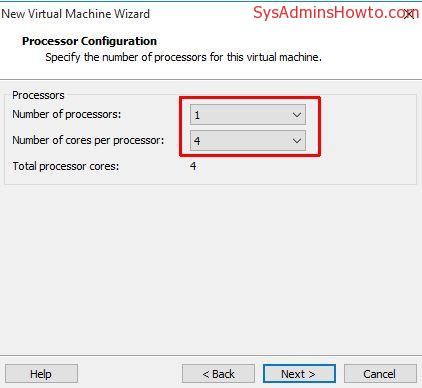
8. Specify how many processors and cores you wanna give to this virtual machine. Default is okay but I want my virtual machine more powerful. So, I give 1 processor and 4 cores.
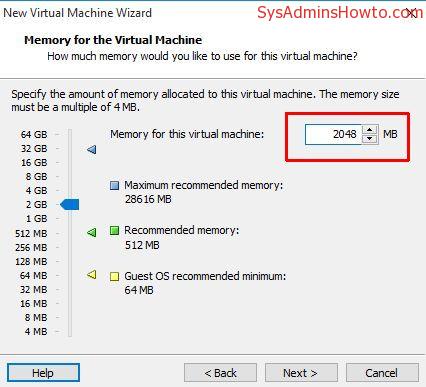
9. Set how much memory you want to give to this Kali Linux virtual machine. I give 2GB of RAM in this tutorial. You can adjust this value according to your physical resources and/or your needs.
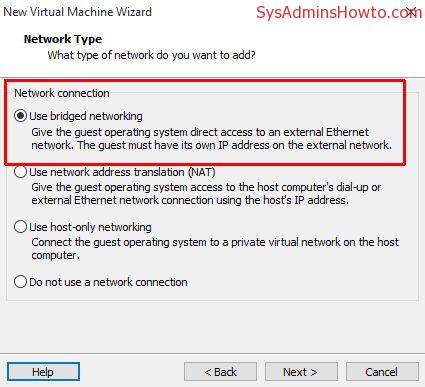
10. Select Use bridged networking. Virtual machine can access to an Ethernet network directly.
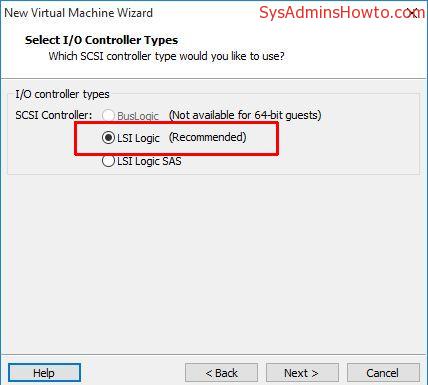
11. Simply click Next at the Select I/O Controller Types section. LSI Logic is recommended for the most cases.
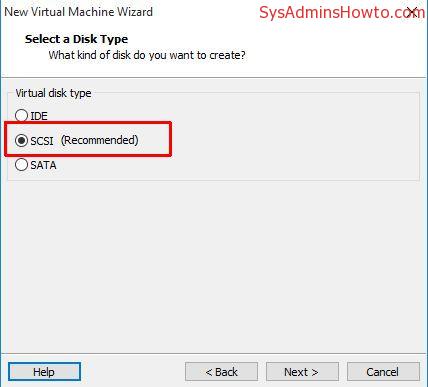
12. Click Next to continue at Select a Disk Type section.
13. Click Next to create a new virtual disk for your virtual machine.
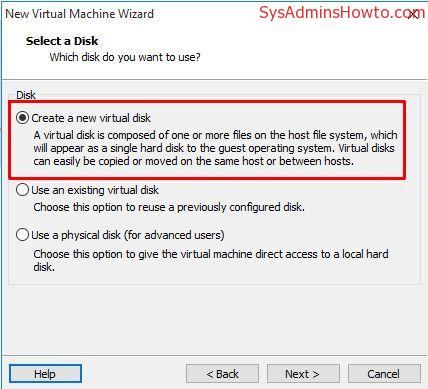
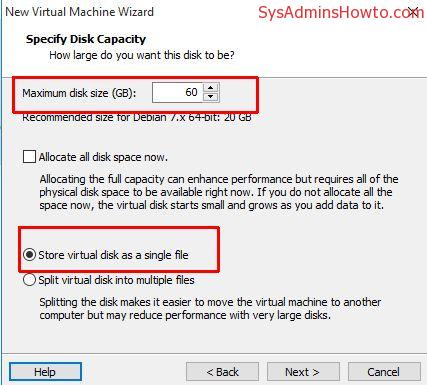
14. Set disk space you want to use. I set it as 60 GB. I also clicked Store virtual disk as a single file option.
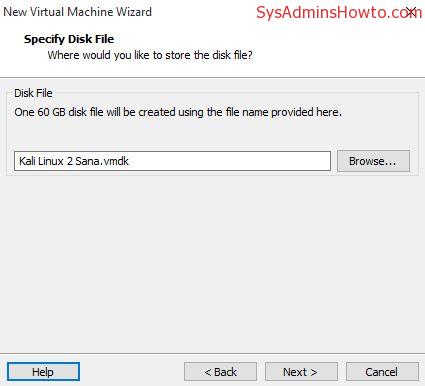
15. Click Next at this screen.
16. Click Finish
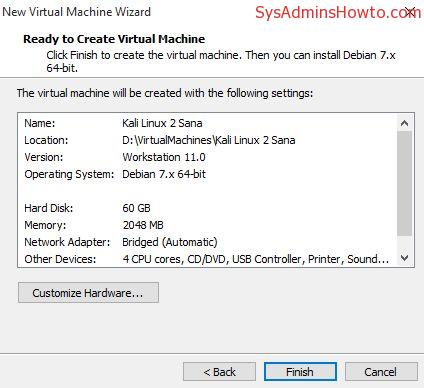
17. Now, click Power on this virtual machine.

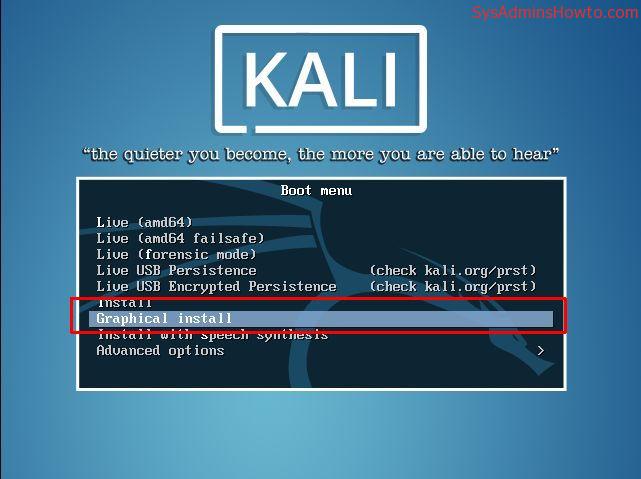
18. Choose Graphical install.
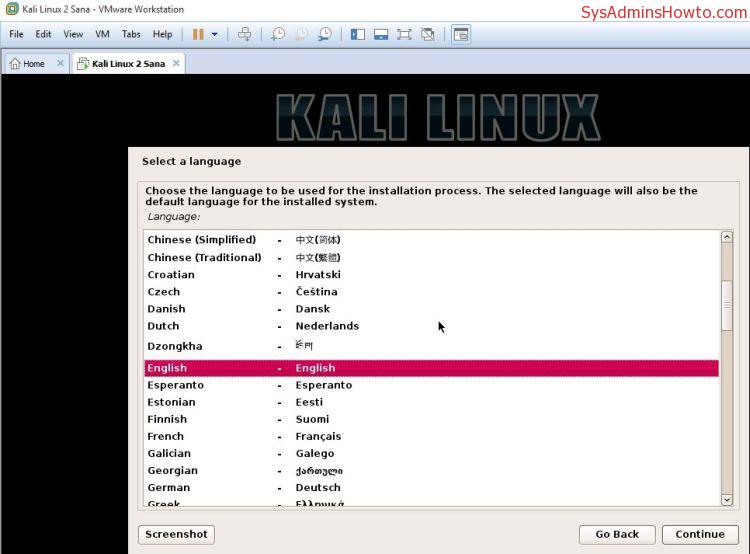
19. Select your Operating System language.
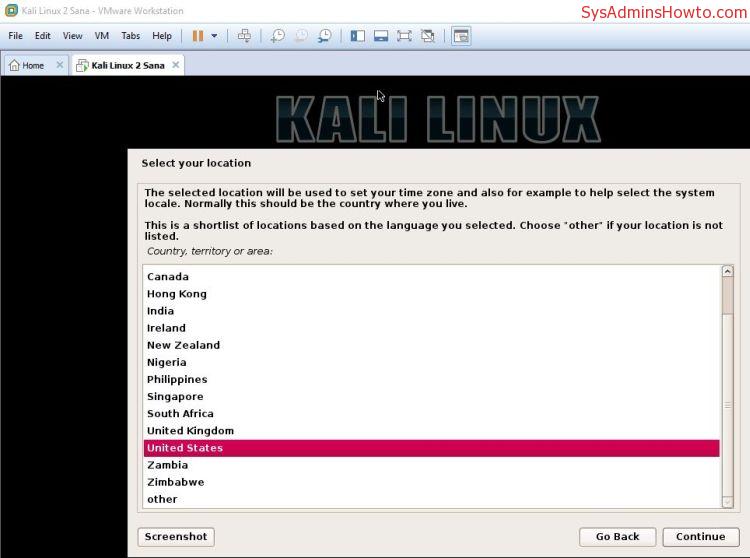
20. Select your location .
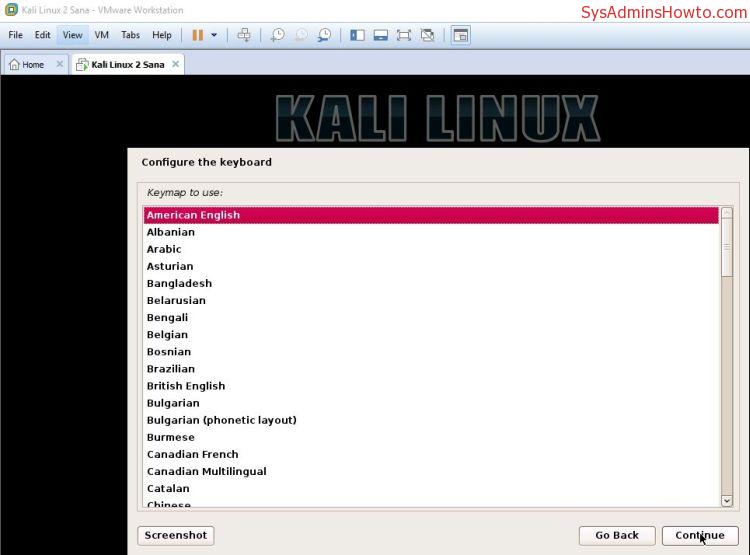
21. Select your keyboard layout.
22. Give a name for your Kali Linux 2.
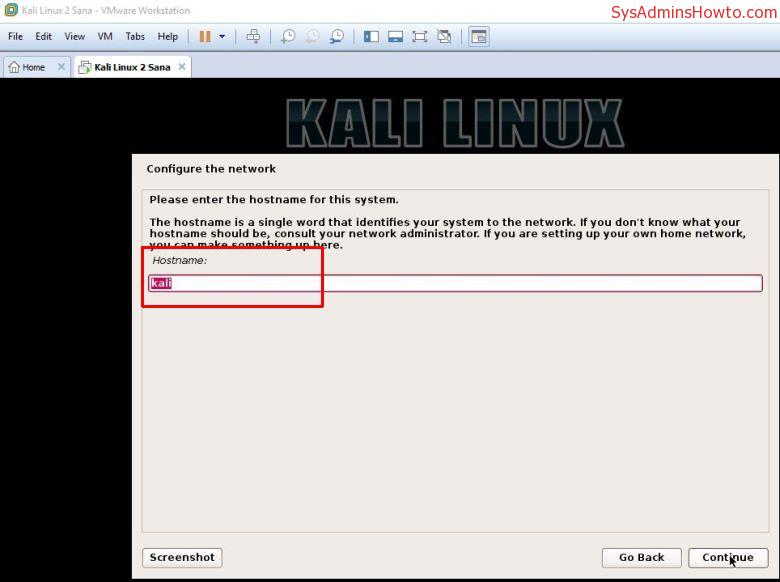
23. Click Continue on Configure the network screen.
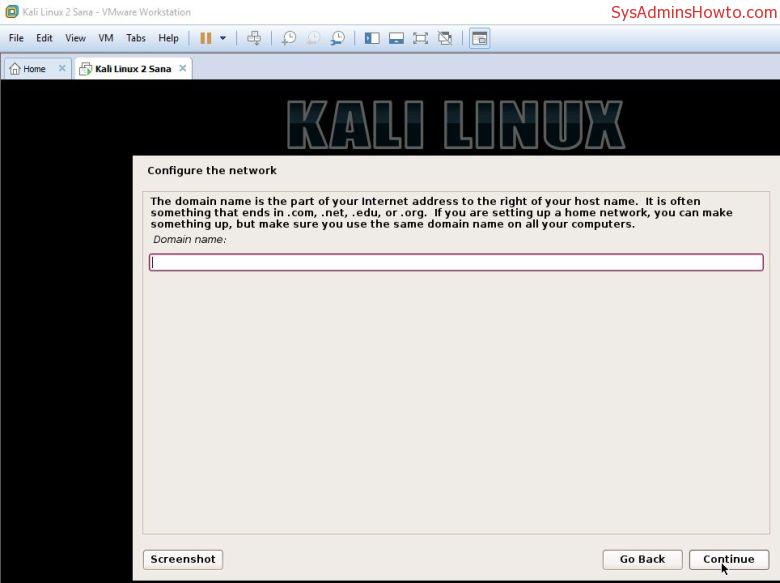
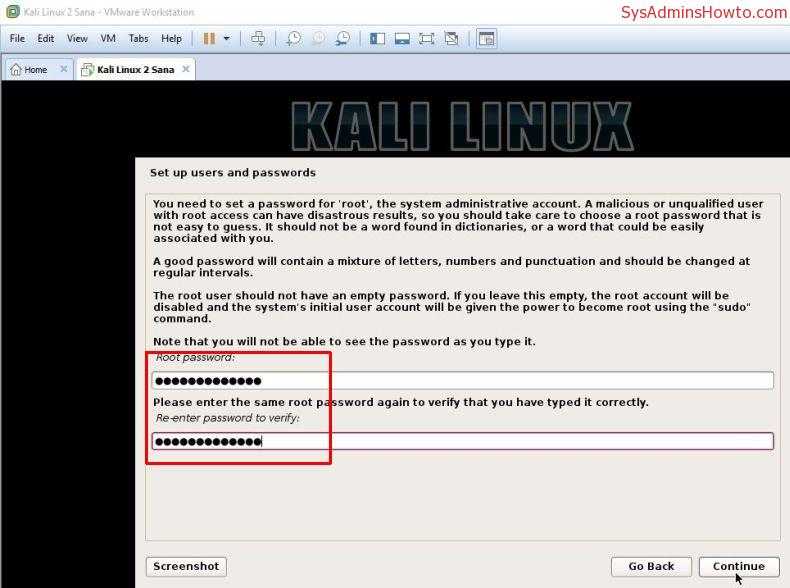
24. Set up root user password here and then Click Continue. You will login into Kali Linux 2 with this password after installation done.
25. Choose Guided – use entire disk option and then click Continue. It is safe to use whole disk because it is virtual disk.
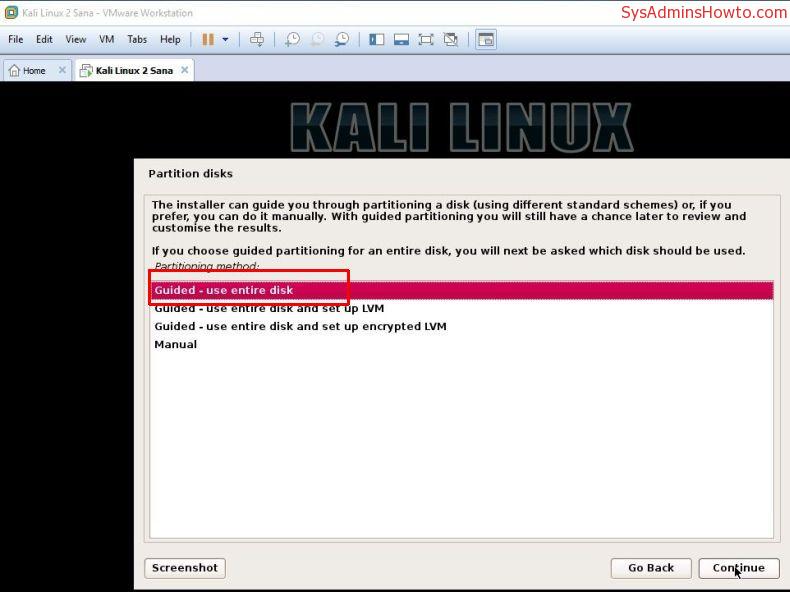
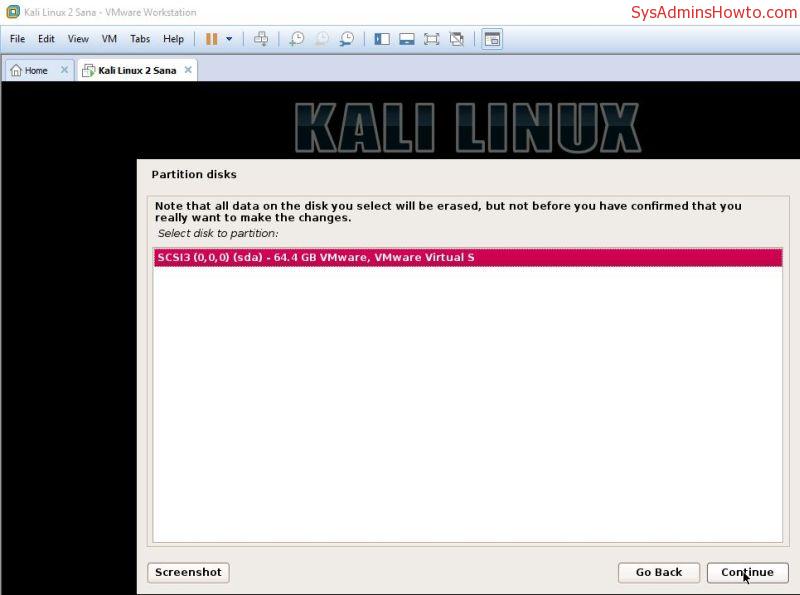
26. Click Continue at Partition disks screen.
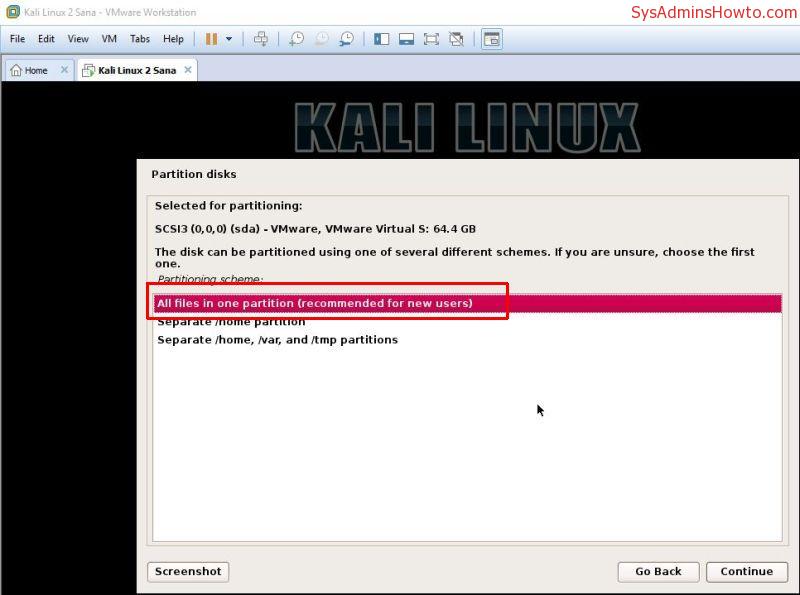
27. Choose All files in one partition (recommended for new users).
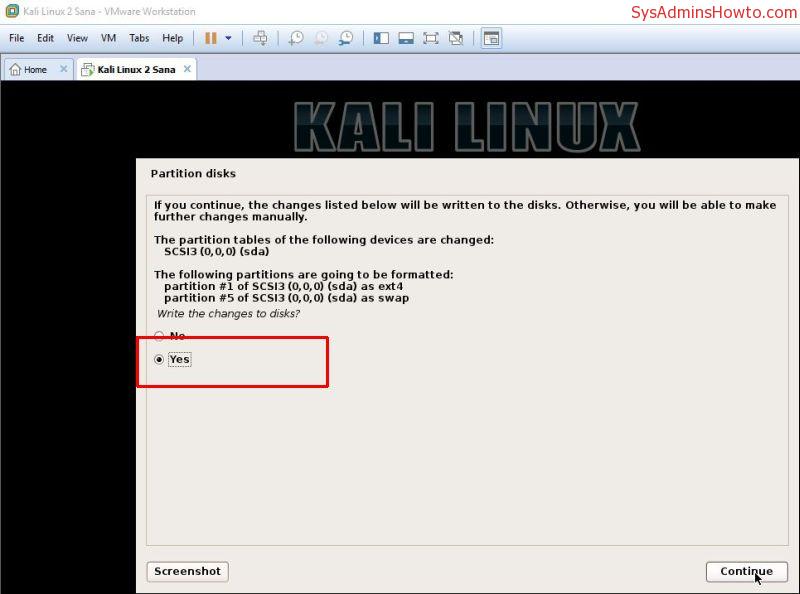
28. Select Finish partitioning and write changes to disk.

29. Select Yes to write the changes to disk.
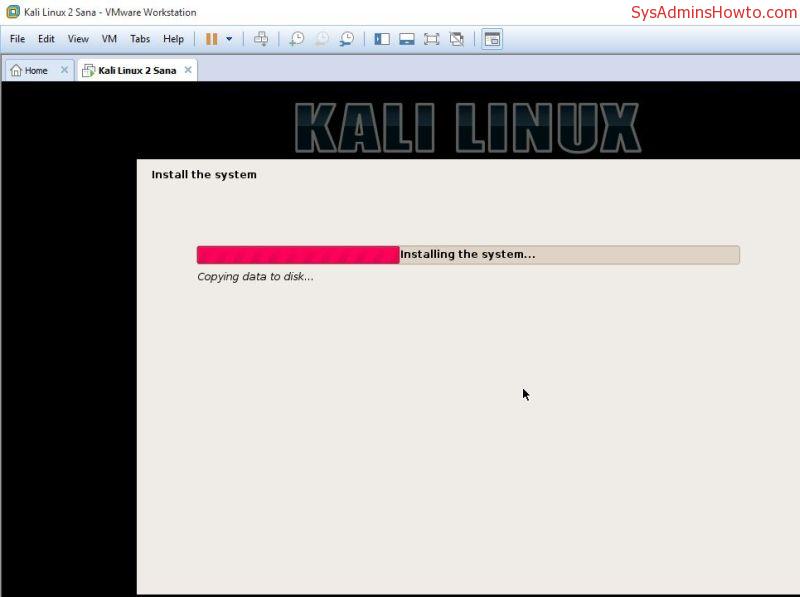
30. Wait until the installer finishes its job. It may take 5-10 minutes.
31. Choose Yes to configure the package manager so that a network mirror can be used for any available updates.

32. Go with the defaults.
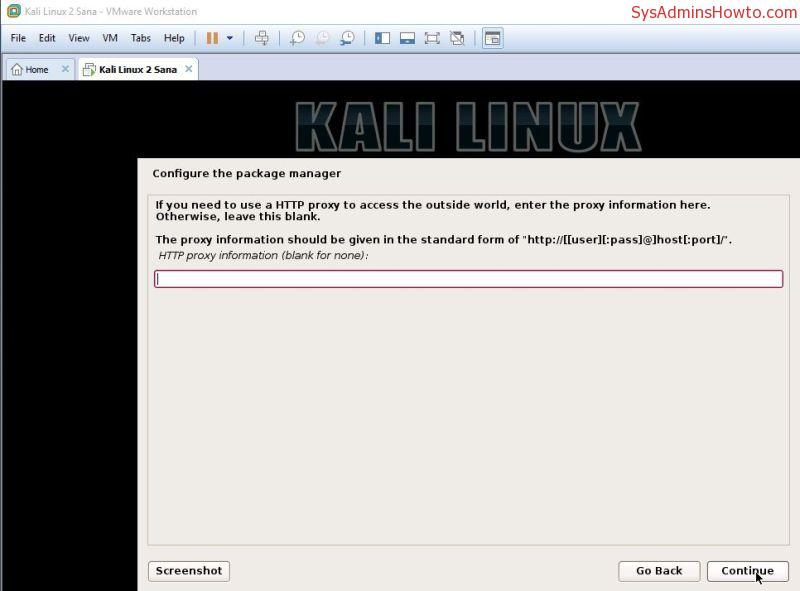
33. Choose Yes to install the GRUB boot loader on your virtual hard disk. This is very important step, otherwise your vm will not boot up.
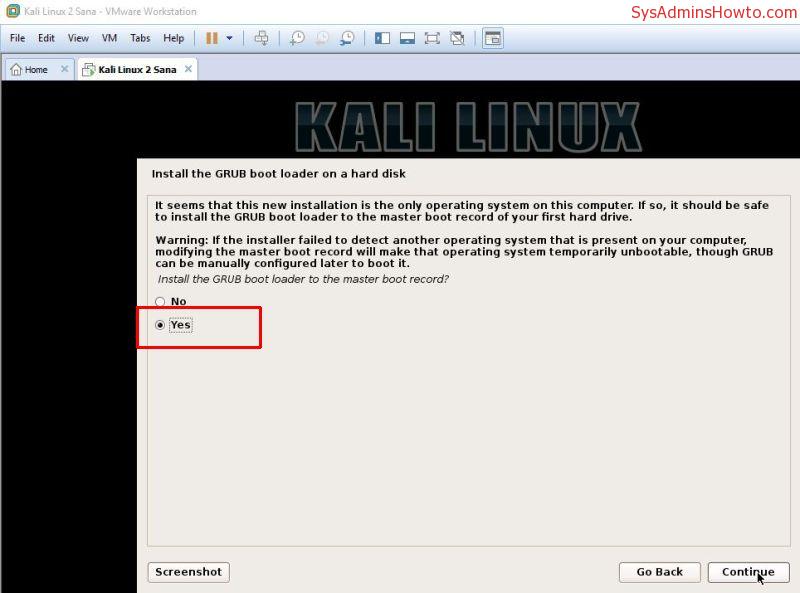
34. Choose /dev/sda on which GRUB will be installed.

35. Click Continue at the Finish the installation screen. Your vm will be restarted shortly.
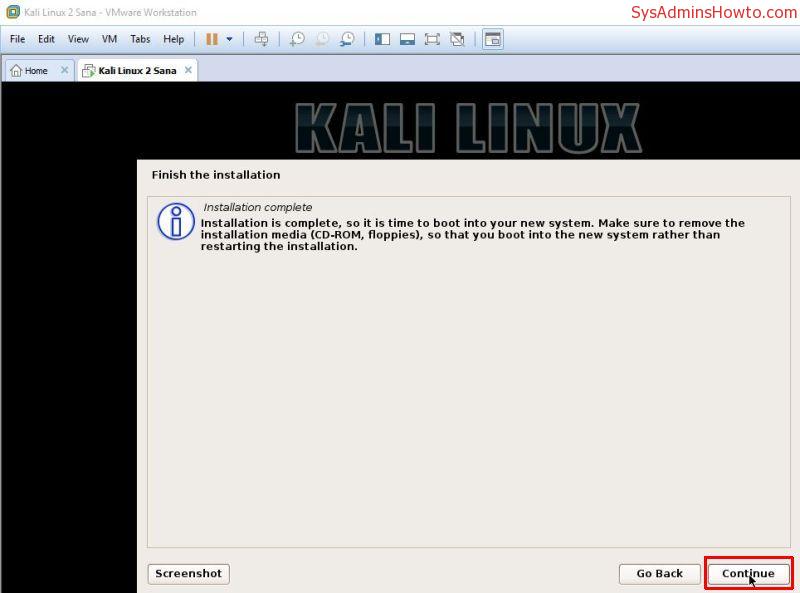
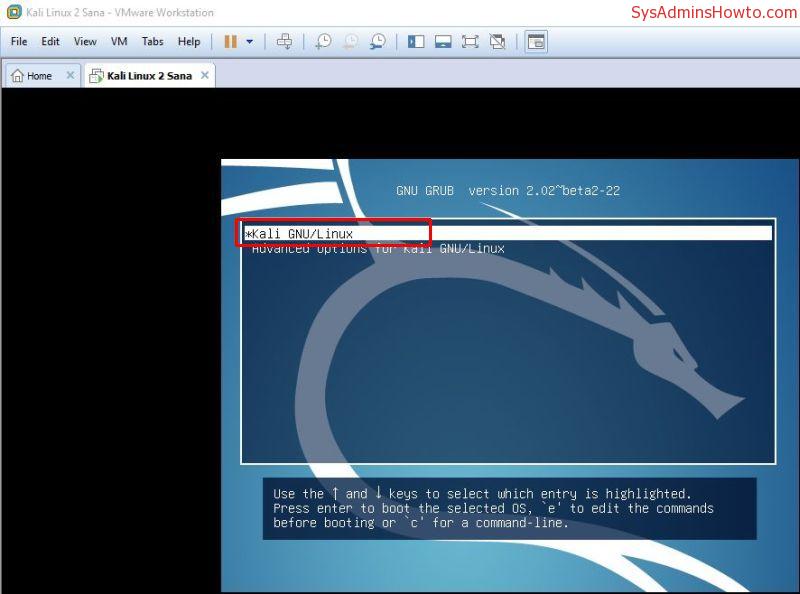
36. Choose Kali GNU/Linux or just wait.
37. Login to your Kali Linux 2 virtual machine with root user and password which you have set in previous steps.
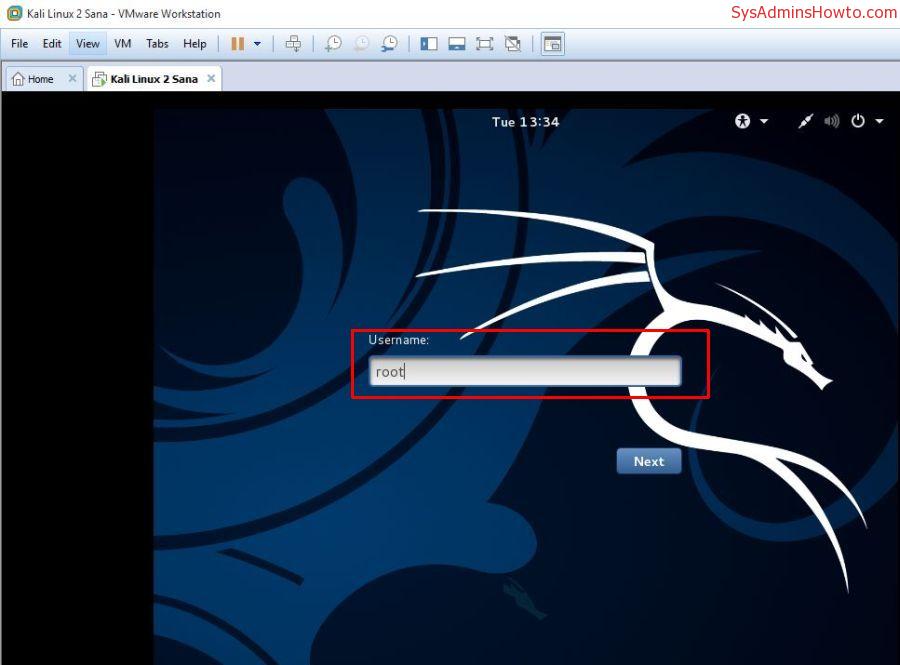

Congratulations, you’ve just installed Kali Linux 2.0 in VMware Workstation as a virtual machine. After the installation, I recommend you to install VMware Tools for better performance and usability. If you want to install VMware Tools, you can follow the steps in How to Install Official VMware Tools in Kali Linux 2 Sana
I hope this article is helpful for you. If you liked it or found useful, feel free to like or share it.

Cloud and infrastructure professional with nearly two decades of experience in enterprise IT environments, spanning public cloud, private cloud, and hybrid architectures.
Hours and hours the first hours great pin test.. Then crash then hours then your article. This is the best and i looked on line for hours.Till i was gonna give up. Thank you so much
You’re all welcome. I am happy to see that article is useful for you.
i have problem .when i start kali give me eror .this mesage oh no! shomething is wrong
I get an error every time after step 32
I get “The grub-pc package failed to install into /target/” after “configuring the package manager” option during the install process.
The weird thing is that I don´t even get the GUI option for “Install the GRUB boot loader to the master boo record” YES or NO.
This worked flawlessly in another lab setup with same software and versions etc.
I also tried the install without network connected – same problem.
How can I resolve this ? Maybe I can install grub in command line instead ?
Do you use the latest kali linux media? Do you have Raid configuration?
Are you installing Kali Linux on laptop with Wifi Connection?
i cant login kali linux always say incorrect password
Try to remember what password you set during the Kali Linux installation.
SMBus host controller not enable and show something went wrong contact system administrative
When do you get this error exactly? or at what step?You should provide more information about the error then we may help.
I was at the brink of smashing my screen from frustration, but finally this tutorial helped, Gracias!
You’re welcome. You can share the post with others so that many people can get help from this Kali Linux article.
dear i have error installing
If you can give error details, then we may help you to solve your installation problem.
Thanks bro 🙂
You’re welcome. Hope you found this Wake on LAN article and people’s feedback helpful and informative.
hey iam getting error installation step failed plz help me plz
Unless you provide additional info about the error, I don’t think somebody can help you.
I have a problem:
Every time i try to install a *nix OS on my VMware Workstation 9 it crashs by the step “copying Files” at 79% and says that something is wrong with my CD/CD Drive and asks me wether I have burned my Installation CD too fast or wether I used Fastburn.
I have tried very much and searched very long but I couldn’t find anything about this error.
HostOS: Win 8.1 32 Bit Please help
Make sure your Kali Linux ISO is not corrupted while downloading. Check its SHA1 and compare your checksum result with value at Kali download site.
Ok i’ll try that but I don’t think that it will solve the problem because I also have a Live USB made with this ISO and everything works fine on this USB and because it’s not only Kali. Every Linux OS I tried to install (Kali,Ubuntu and Debian) crashed at this step during Windows is working fine.
I have downloaded the latest Kali Linux 2016.1 from official linux site (https://www.kali.org/downloads/) and now when I started to add a new virtual machine by using VMWare 12 pro I’m unable to find the version of this latest Kali Linux 2016.1….. :/
Can you please tell me what is the version?
Version of what?
I am having same problem. Shows: Could not detect which operating system is in the disc image. Can anyone please let us know, which operating system is in file:
Kali-Linux-2016.1-i386.iso
Hi
I try to install it via graphic install or classic install on Vmware server 2.
installation is complete but I got a black screen after Grub…
Or booting is block after :
“nsc-ircc wrong chip version 00”
any ideas ? 🙂
Try to enable virtualization features in physical computer BIOS. It may help.
I had the same issue after installing Kali 2.0 over vmware, below solution worked for me:
This will complete in 2 steps..
First Step:
1. while booting up, where it asks to start the Operating system in normal mode or in advanced mode. press ‘e’ to edit the Grub parameters while boot.
2. find the line that starts with “linux” and ends with “quiet”.
“linux /boot/vmlinuz-4.9.0-kali3-686-pae root=/dev/sda1 ro inited=/install/initrd.gz quiet”
3. once you have located the line, append it with a space and type “nomodeset”.
4. press “Ctrl+X” or “F10” and let the OS load. it will through the same error but give it some time [20-30 seconds] and it will pop up the login screen.
5. Enter your credentials to login.
Second Step:
1. Once you are logged in, Open the terminal.
2. Here we are going to do the exact same thing what we did while First Step. We are going to edit the “/boot/grub/grub.cfg” file to make our modeset selection permanent.
3. Open “grub.cfg” file by executing following command:
vi /boot/grub/grub.cfg
4. press “i” to enter in to insert mode and find all the lines [2 lines] that starts with “linux” and ends with “quiet”. such as –
“linux /boot/vmlinuz-4.9.0-kali3-686-pae root=/dev/sda1 ro inited=/install/initrd.gz quiet”
5. When you find these lines simply append these lines with a space and type “nomodeset” as follows –
“linux /boot/vmlinuz-4.9.0-kali3-686-pae root=/dev/sda1 ro inited=/install/initrd.gz quiet nomodeset”
6. once you are done with these changes, press “esc” and type “:wq!” and press enter to save you changes in to the file.
Now try to restart your system and let it boot normally. It will through you the “nsc-ircc wrong chip version 00” error, but you can ignore that, just wait for few seconds, and it will show you the Login Screen.
Why it is getting so many time in the last step of (copying to data to disk ) I waited above 1 hour….. Plz help me…
Contact me at : mhsinger786@gmail.com
Best article and step-to-step instalation for kali. It helped me install it fast and simple, without bothering with the errors or reboot my computer. Thank you very much!
You’re welcome 🙂
Its not showing available wifi like it shows in windows 7. My windows is connected through wifi but kali established it as a wired connection. my net is working but not showing any wifi available.
If you use Kali Linux as VM, then you have to use supported external USB Wi-Fi adapters.
How to configure VMWare so that its IP address is different than my windows IP address?
By default, VMware virtual machine gets different IP from your DHCP device.
I finished installing with no errors, but I can’t seem to sign in, even though I wrote the root and the password as the same when I was installing the OS.
In the sixth step, I had clicked on Ubuntu 64 in version (By default). I’m in 34th step. Will it work or do I need to change it to Debian 7.x 64 bit? I’m installing Kali Linux 64 bit ISO on my VMware Workstation 12.
Choose Debian 8.x 64-bit.
Okay! Thank you. 🙂
thank you very much for this tutorial I failed maybe 30 times before I visit your site
great effort keep going
thank you very much bro :*
mine it says network configuration failed. i used bridge in vmware workstation 12. and i configured it manually, is that ok? and it says mirror problem
pretty useful article
thank you very much! <3
thank you its wonderful and also very easy
can you please tell me how to install wifi slax with usb adapter 2.0 in vm ware
You’re very helpful! Thanks so much!
thanks
My laptop has Broadcom wifi.. but it is not supported in kali.
Can u tell me how to fix it.
you should install your wifi drivers ,
how can i hack my i pad i forgot the password and it was disabled
hey i downloaded using torrent and now its zip file there are different parts in zip. how should i install that. there is no ios file.